How to Export Shopify Data to BigQuery Automatically
Discover the 4 ways to export Shopify data to BigQuery, including your full order history, and how to automate it in minutes with Unite.


Introduction
Discover the 4 ways to export Shopify data to BigQuery, including your full order history, and how to automate it in minutes with Unite.
Shopify's built-in reports cover a lot: sales, products, customers and more. Where they stop is everything outside Shopify. Comparing Shopify revenue with what Meta and Google claim, joining orders to your CRM, or building your own definitions and models means getting your order data somewhere you can query it freely, next to your ad and analytics data.
For teams on Google's stack, that place is BigQuery. Getting Shopify data there is easy to start and easy to get subtly wrong, because of two Shopify rules: how much order history an app can see, and how Shopify defines a sale.
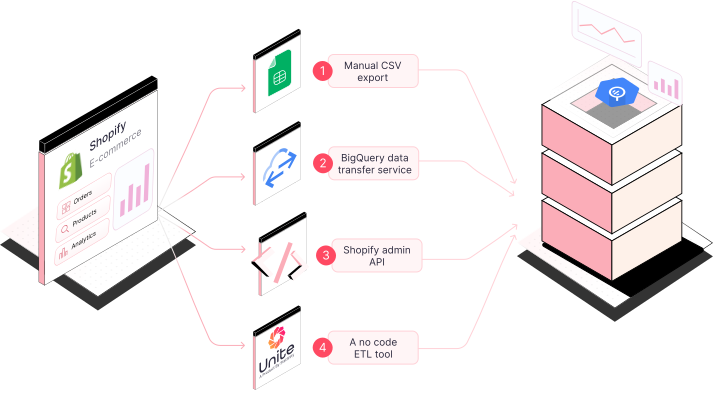
The four ways to get Shopify data into BigQuery
1. Manual CSV export
From the Orders page in Shopify admin, click Export, then load the file into BigQuery.
It works for a one-off look, but it doesn't hold up as a routine:
- Large exports are emailed, not downloaded. Shopify says an export of 400,000 items might take around four hours.
- One row per line item. An order with three products becomes three rows, with most order-level fields left blank on the extra rows.
- Some data never makes it in. The discount code column doesn't include automatic discounts, and the transaction history contains only captured payments, without authorisations.
- Values are frozen at order time. The export shows product data as it was when each order was created, not as it is today.
Product and customer exports follow the same pattern: separate files, built by hand, every time.
2. Google's native connector (BigQuery Data Transfer Service)
Google added a Shopify connector to the BigQuery Data Transfer Service in August 2026. It is still in “Preview”.
How it works:
- It needs a custom Shopify app. Google's setup asks for your shop name and the Client ID and Client Secret of a custom app you create for your store, the same kind of app the Unite setup below uses.
- You pick objects from a long list, including Orders, OrderLineItems, OrderTransactions, Refunds, Returns, Products, Customers, InventoryItems and Fulfillments, each with the scopes it needs.
- Every run reloads everything. Google says that with every transfer run, the connector transfers all available data from Shopify into BigQuery.
- Some objects have conditions. GiftCards needs Shopify Plus, and Google's scope list for the Customers object includes write_customers, a write permission.
- Order history isn't mentioned. Google's scope table doesn't include read_all_orders, which Shopify requires for orders older than 60 days (more on that below).
On cost and support, Google charges nothing for this connector while it is in Preview. Its definition of Preview is the catch: no SLA, no technical support commitments, and intended for test environments unless Google says otherwise. Once connectors reach general availability they are billed by consumption, in slot-hours.
It is worth testing, but not yet something to run your board reporting on.
3. The Shopify Admin API
Build your own pipeline. You get full control, and a long list of engineering decisions:
- GraphQL only. Shopify made the REST Admin API legacy on 1 October 2024, and new public apps have had to use GraphQL since 1 April 2025.
- Rate limits by plan. Requests are metered in cost points, restored at 100 points per second on Standard plans, 200 on Advanced and 1,000 on Shopify Plus. A single query can't cost more than 1,000 points.
- Pagination stops at 25,000 objects. Past that you need bulk operations, which run asynchronously, must finish within 10 days and return a JSONL file you download and parse.
- 60 days of orders by default. The read_orders scope only covers orders created in the last 60 days. Full history needs read_all_orders.
- Customer data is protected. Names, emails, phone numbers and addresses are Level 2 protected customer data, with extra rules for apps that use them.
None of this is unreasonable. It is simply more than most marketing and e-commerce teams want to build and maintain.
4. A no-code ETL tool
A tool like Unite handles the API, pagination and scheduling for you. You connect your store once, choose the tables and fields you want, and the data lands in BigQuery on a schedule, next to your Google Ads and Meta Ads data.
Unite connects through a custom app you create in your store's Dev Dashboard, with read-only access. The setup includes read_all_orders, so your full order history comes through. Store owners don't need a Shopify Partner account, and neither do agencies working in a client's store with staff access.
How to connect Shopify to BigQuery with Unite
The whole setup takes about ten minutes.
Before you start, you will need:
- Owner access to your Shopify store, or a staff account with the App development > Develop permission
- A Unite account, with BigQuery connected under Destinations
Step 1: Create the app in your store's Dev Dashboard
- In Shopify admin, go to Settings > Apps, click Develop apps, then Build apps in Dev Dashboard. Always open the Dev Dashboard from your store's admin, so the app is created for the right store.
- Open Apps, click Create app and choose Create app manually.
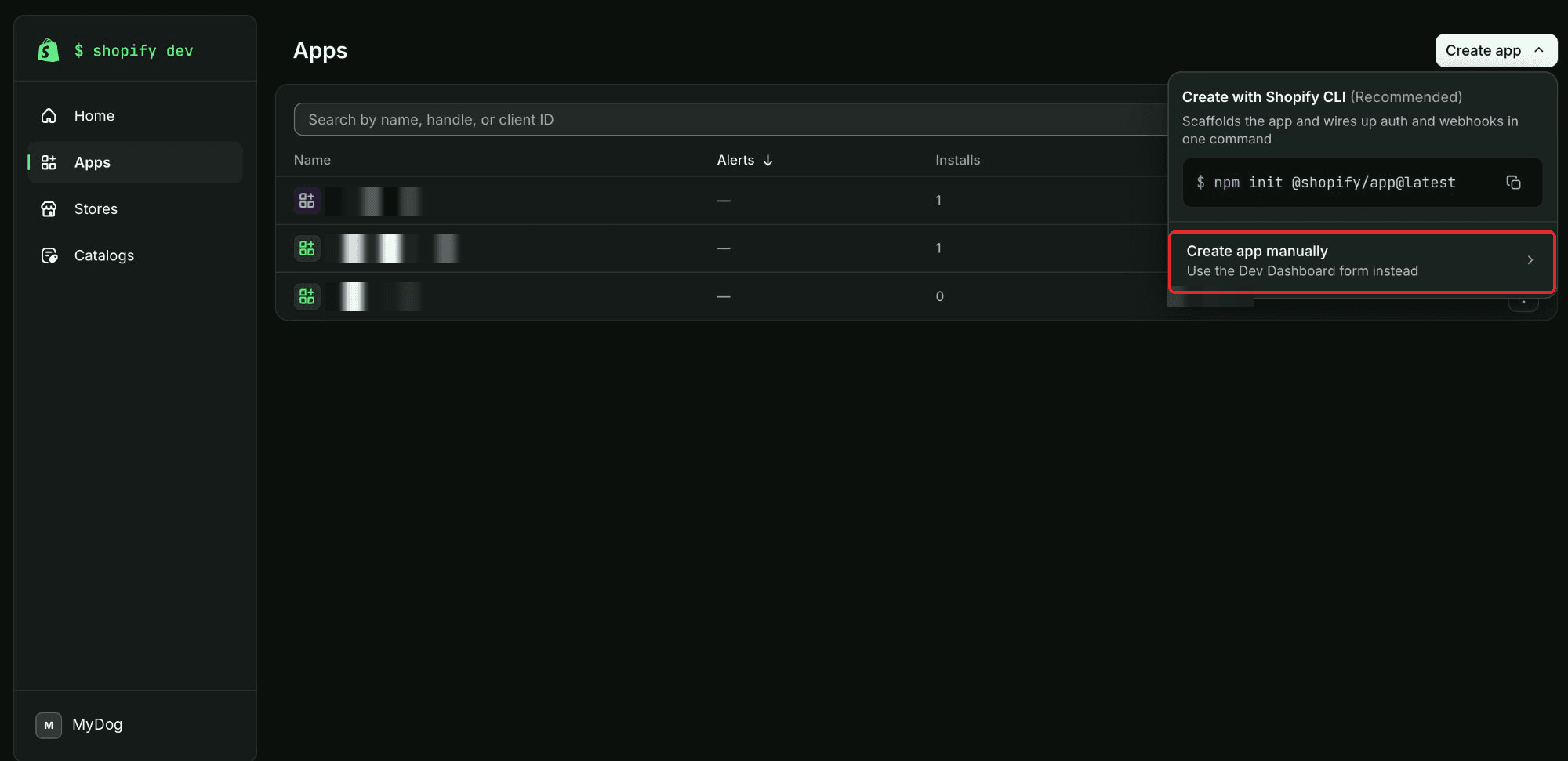
Fill in the form with the below details:
App name: Unite
App URL: https
://uniteyourdata.com Embed app in Shopify admin: untick it (Shopify ticks it by default)
Allowed redirection URL(s):
https
- Use legacy install flow: leave untick, then click Create app.
Step 2: Add full order history
Shopify only shares the last 60 days of orders unless the app has read_all_orders scope. The Create an app form rejects that scope ("Contains invalid scopes"), so you add it in a second version before installing.
- In your app, open Versions and click Create version.
- Add read_all_orders, to the start of the scopes list and click Release.
- Open the new version to check it: it should show embedded: false, with read_all_orders first in its scopes.
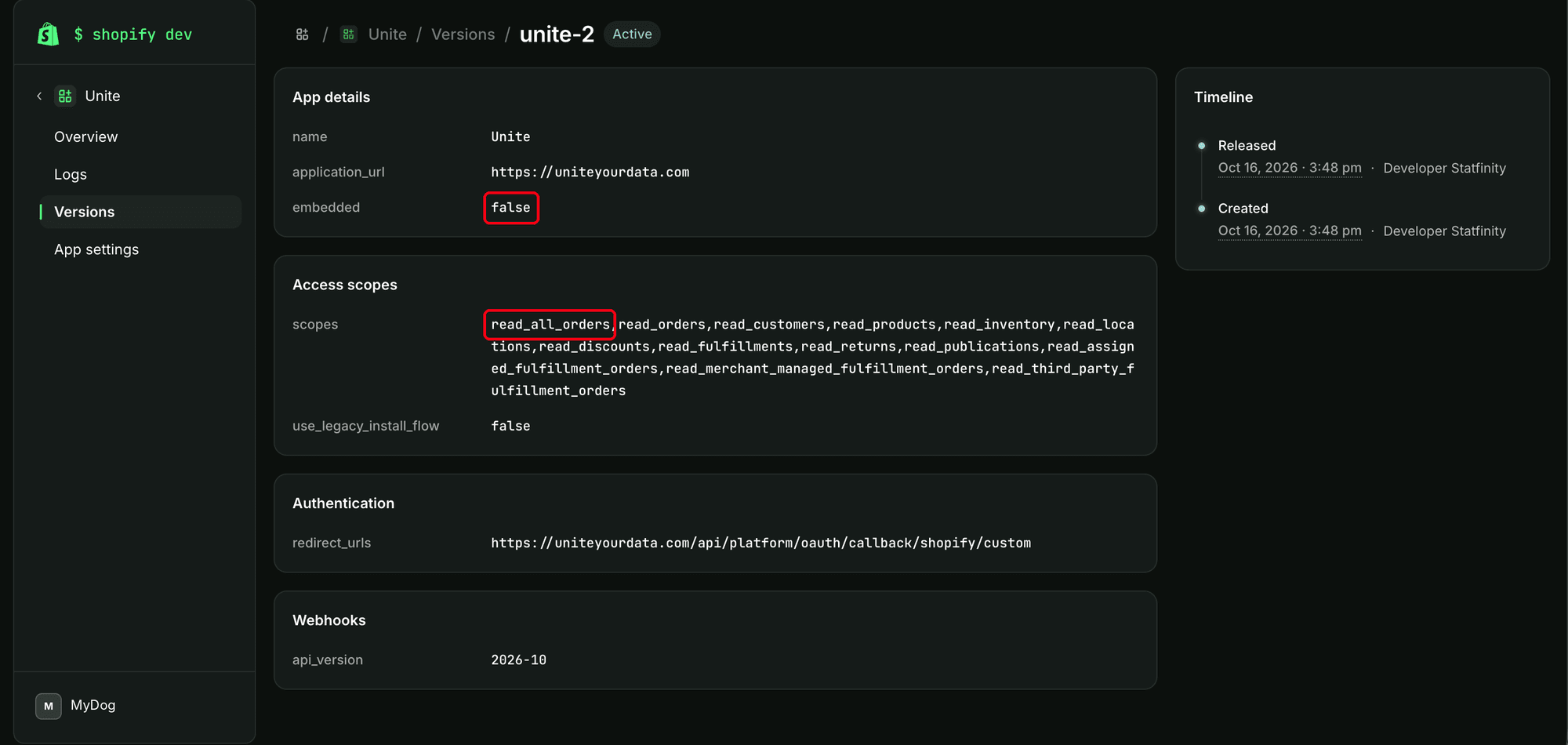
Shopify has confirmed that custom apps created in the merchant's own Dev Dashboard are already authorised to use read_all_orders, so there is no request to wait for.
Step 3: Install the app on your store
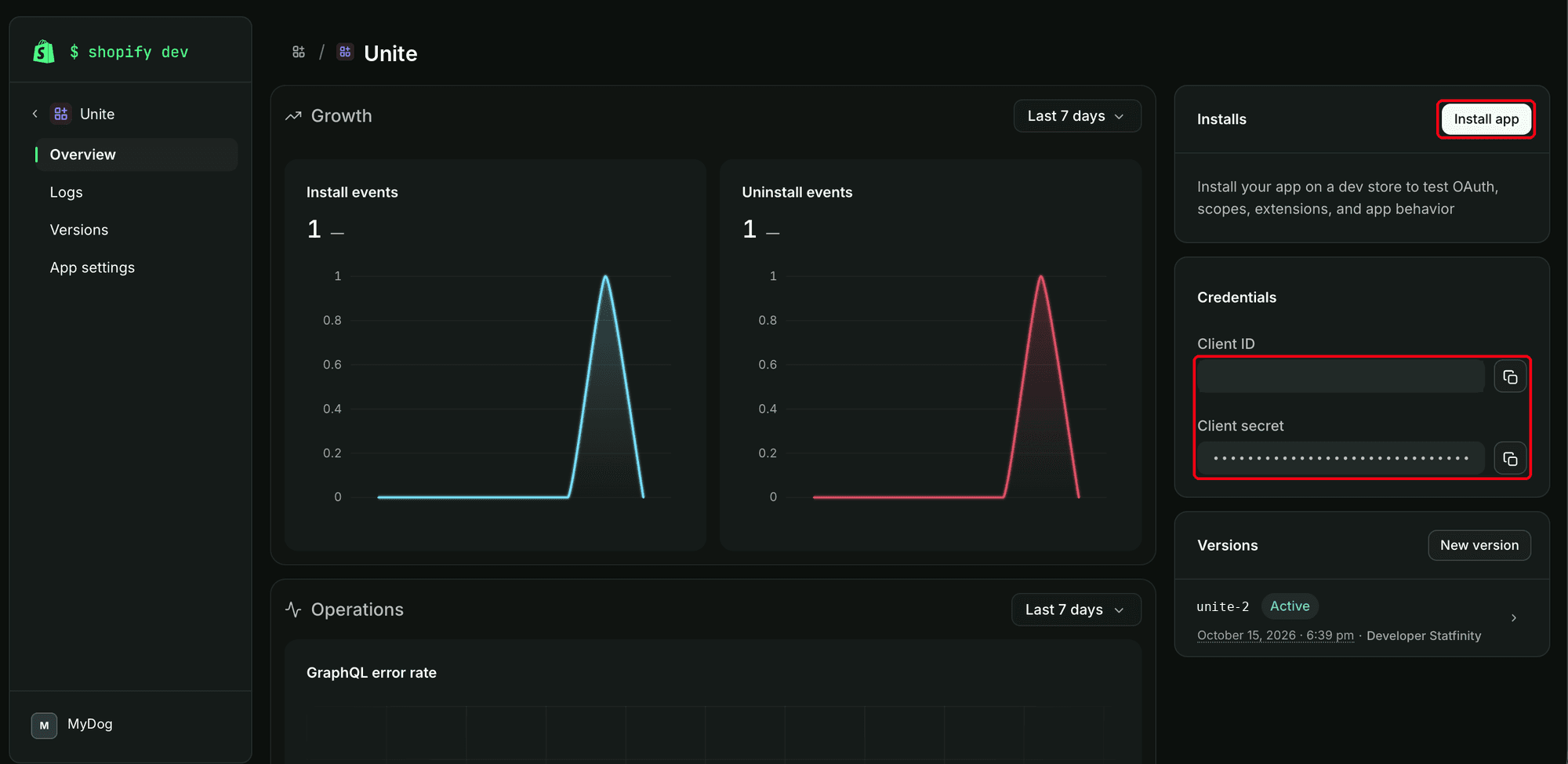
On the app's Overview page, click Install app, choose your store, review the read-only access and click Install.
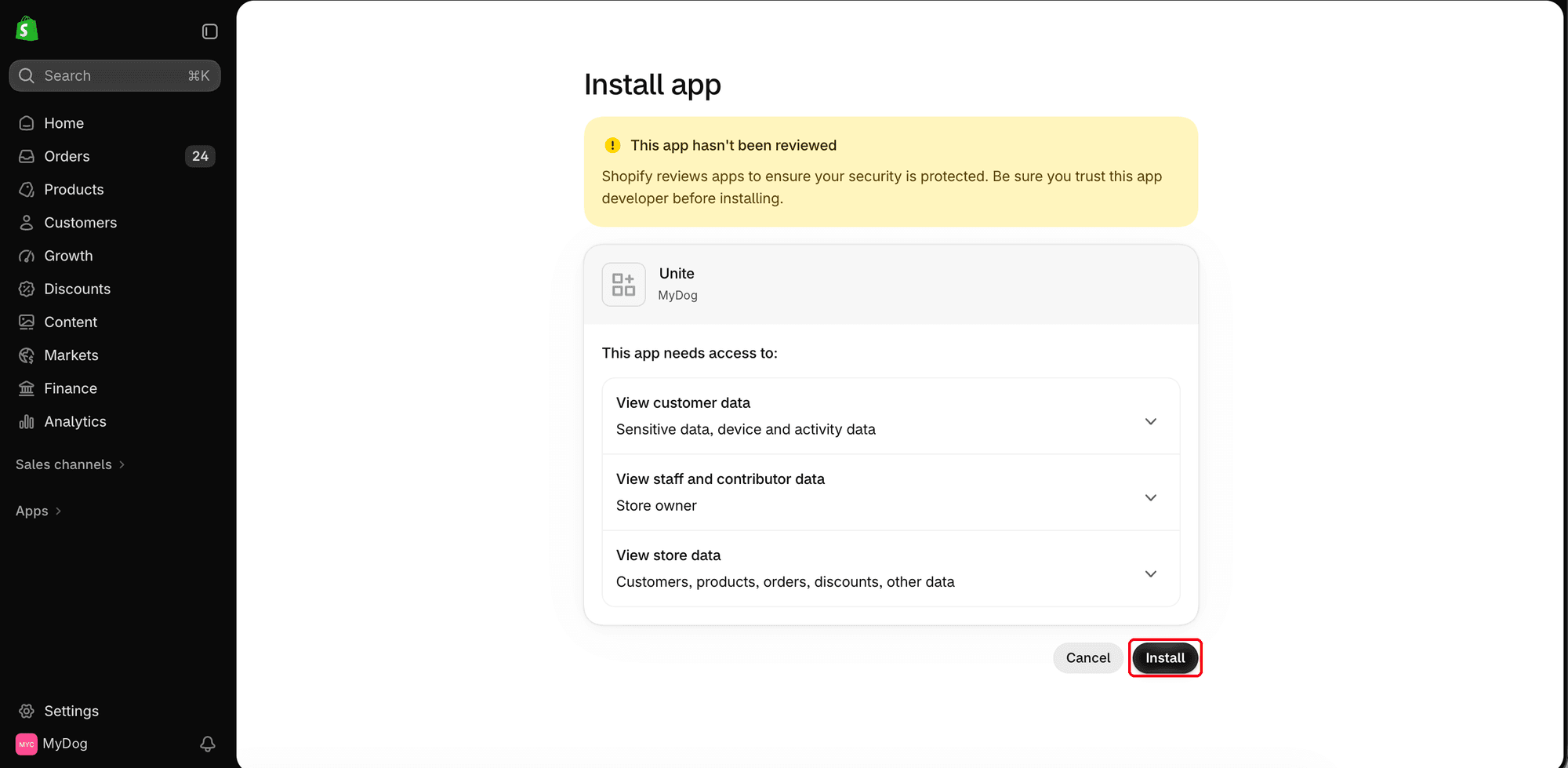
Shopify shows "This app hasn't been reviewed" for every custom app, so you can ignore that warning. After installing, Shopify opens the Unite website, which means the install worked.
Step 4: Copy the app credentials
Back on the app's Overview page, copy the Client ID and Client secret from the Credentials card. Treat the secret like a password.
Step 5: Connect in Unite
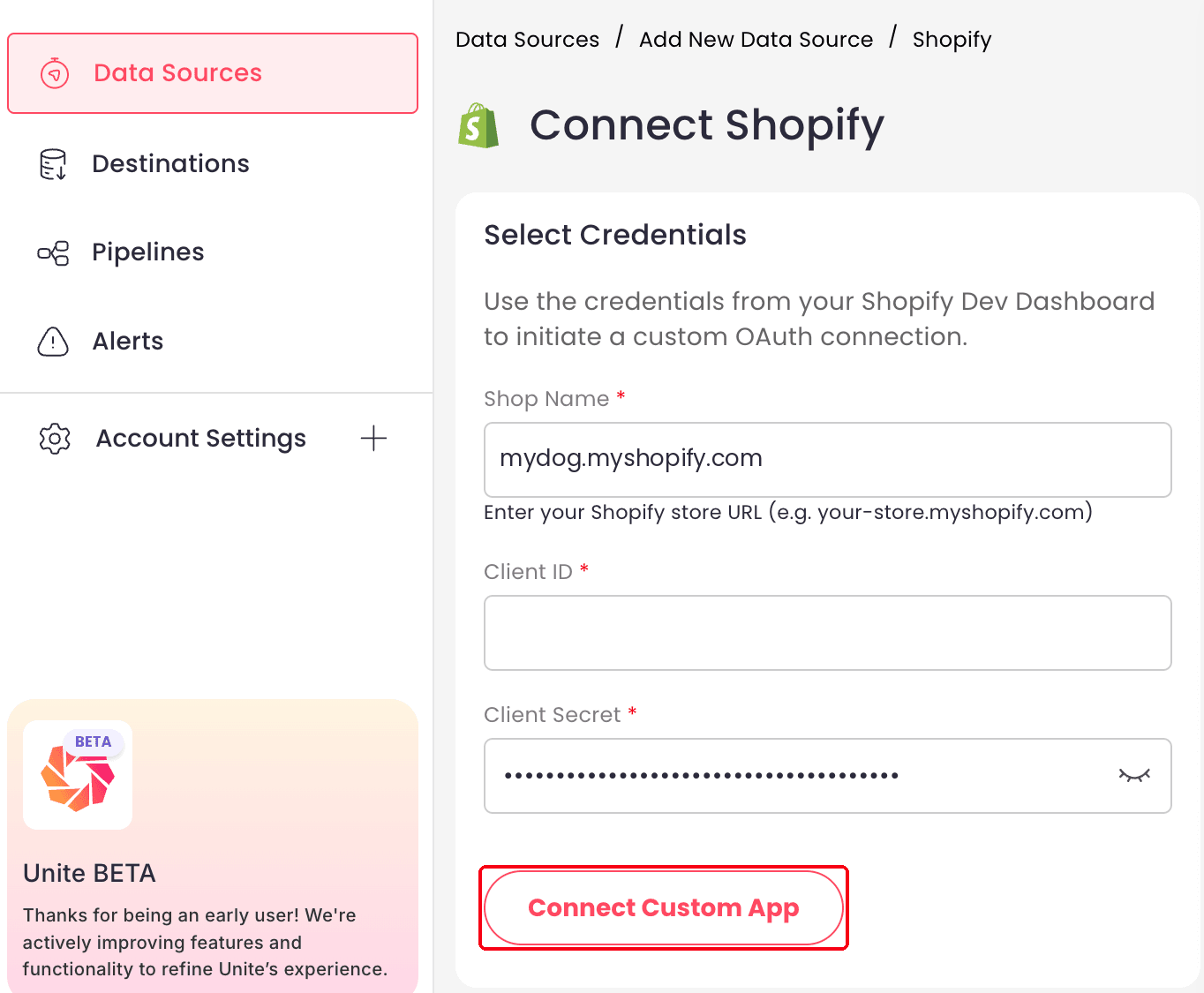
In Unite, go to Data Sources, choose Shopify, and enter your Shop Name (for example your-store.myshopify.com), the Client ID and the Client Secret. Click Connect Custom App.
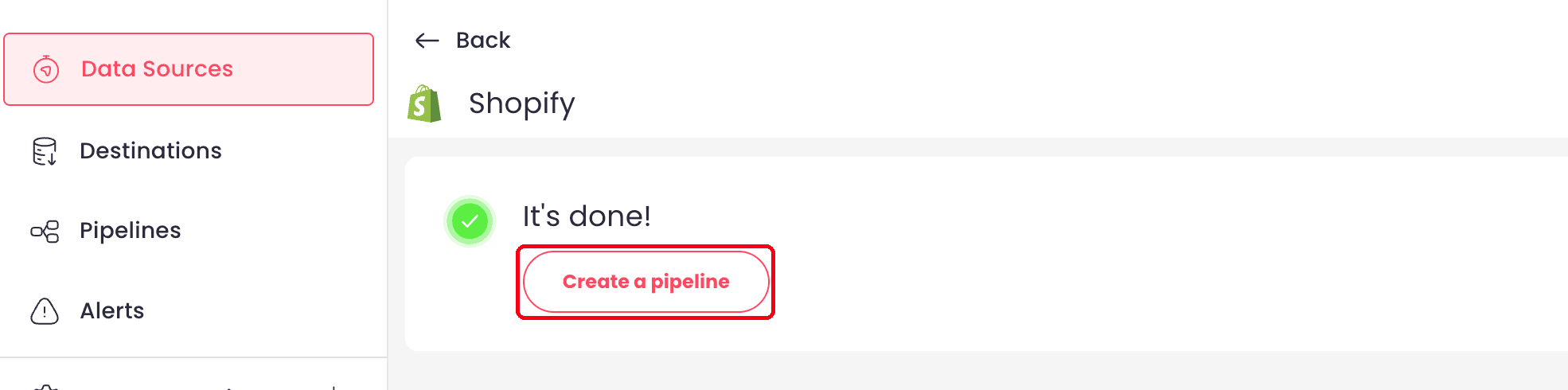
When Unite says “It's done!”, click Create a pipeline.
Step 6: Build the pipeline
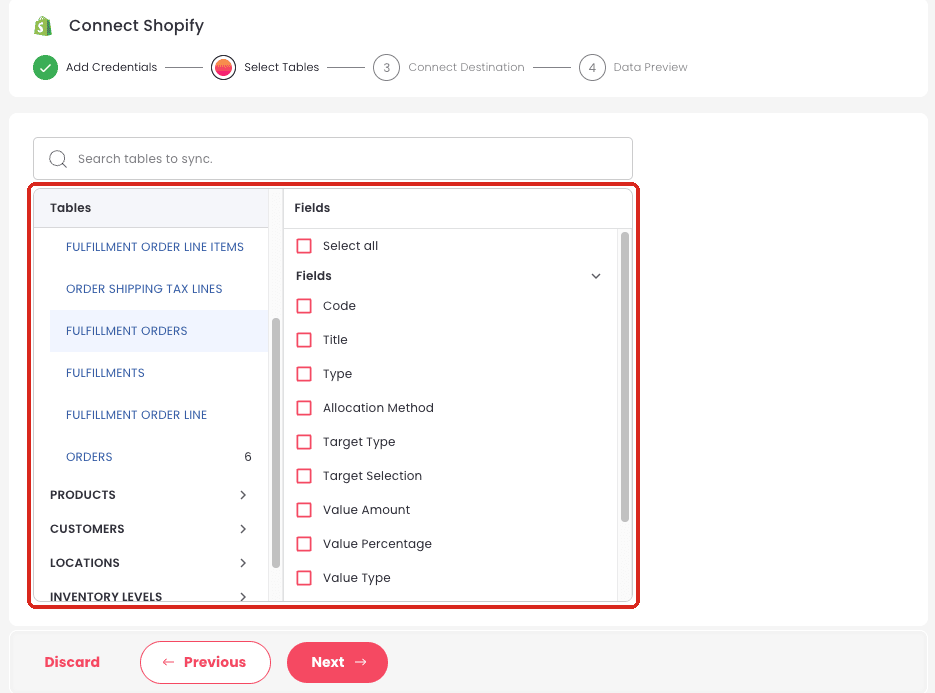
- Select tables. Choose from Orders, Order line items, Order transactions, Order discounts, Order shipping tax lines, Fulfillments, Fulfillment orders and their line items, Products, Product variants, Customers, Inventory levels, Locations and Shop. You can pick individual fields inside each table.
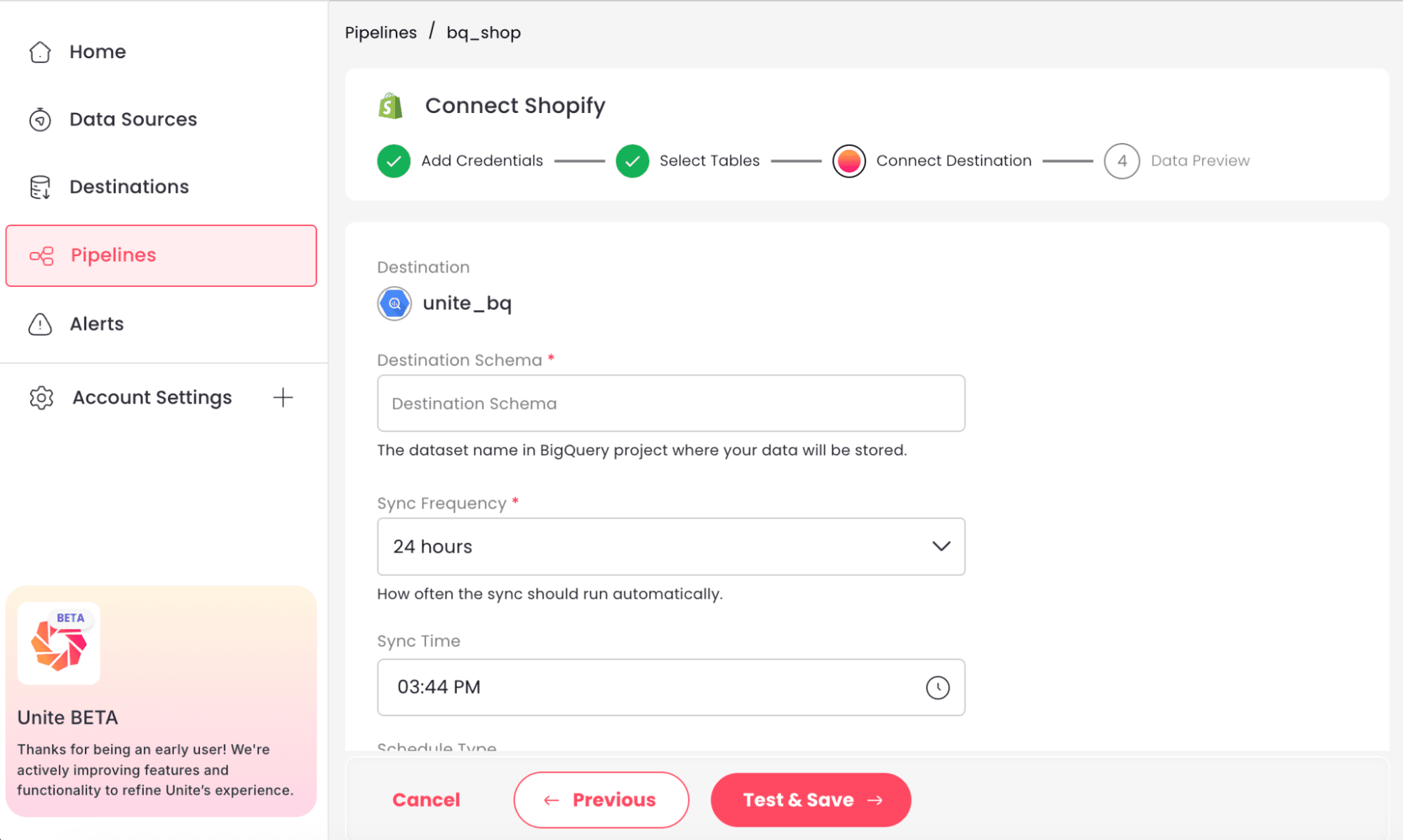
- Connect your destination. Choose your BigQuery project and dataset, how much history to load and how often to sync.
- Check the data preview, then click Finish.
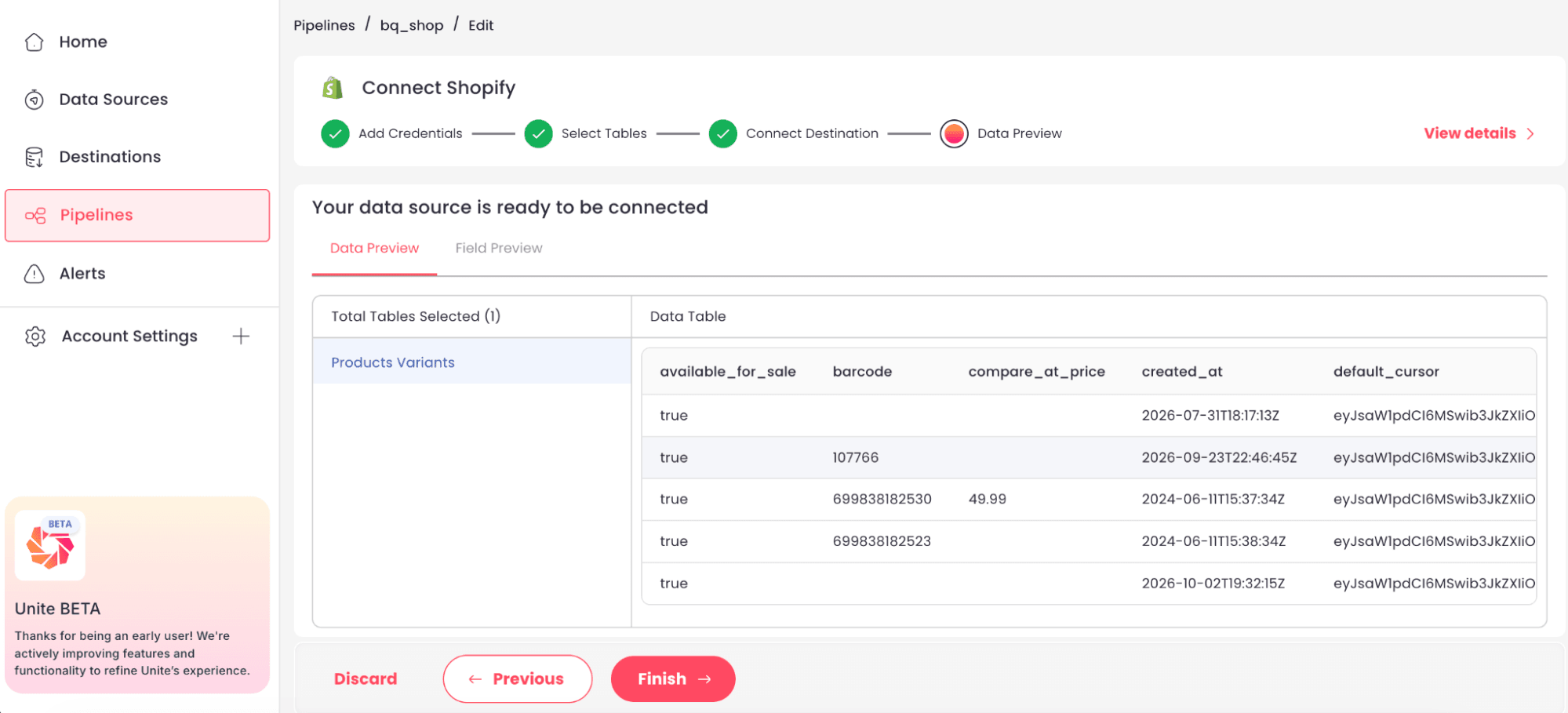
The history setting counts back using each record's last-updated date, so an old order that was edited or refunded recently is included too.
Check you have your full order history
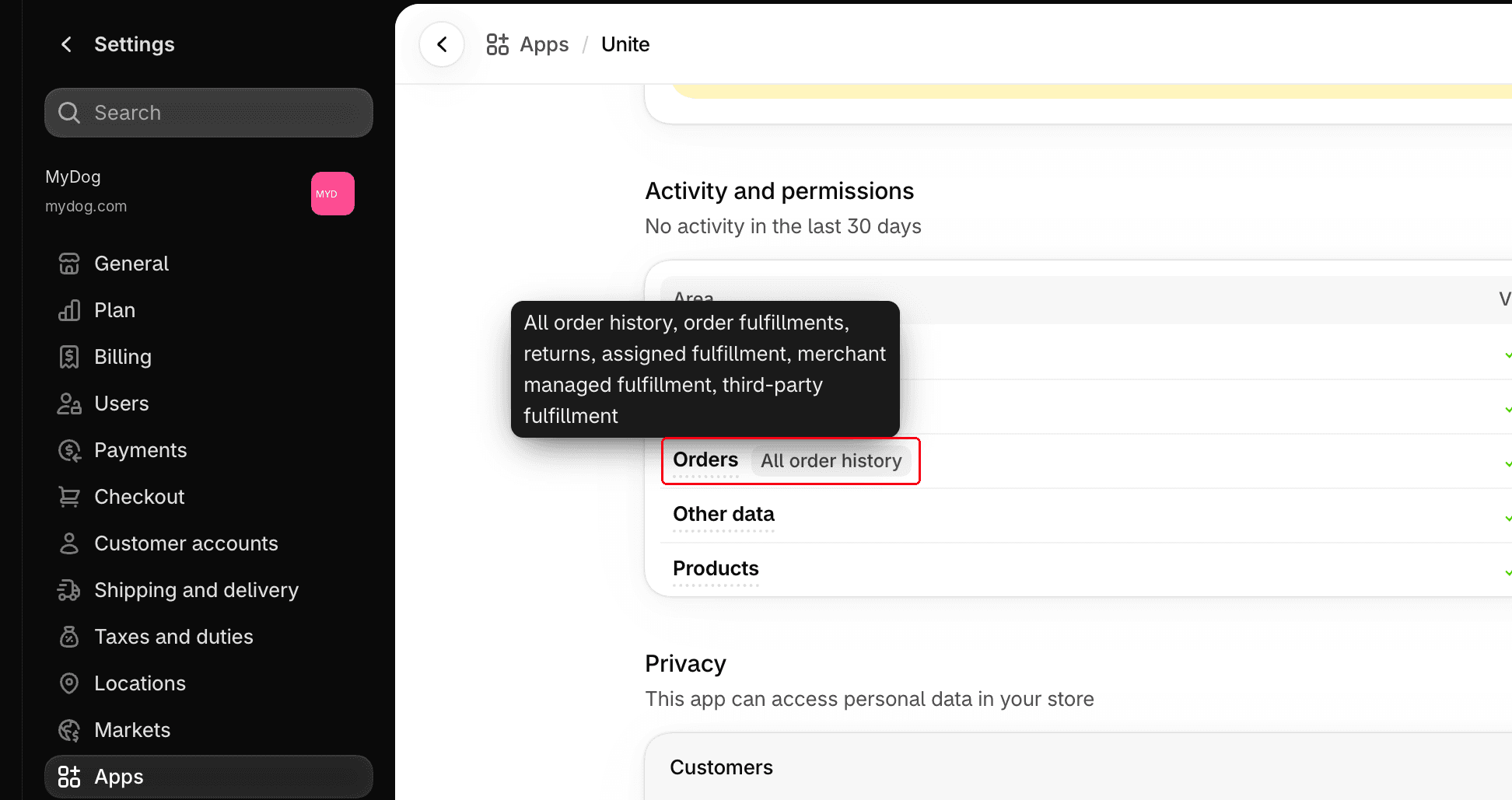
In Shopify admin, go to Settings > Apps, open your app and look under Activity and permissions. Orders should say All order history.
If it says "last 60 days", read_all_orders wasn't in the released version when you installed: release a version with it, then uninstall and reinstall the app and reconnect in Unite.
Setting this up for a client?
Ask the client to add you as a staff member with the App development > Develop permission, then follow the same steps from their store's admin. Collaborator accounts won't work, because collaborators can't open the Dev Dashboard.
What makes Shopify data tricky
Shopify's numbers are consistent once you know its rules. The trouble is that the rules aren't the obvious ones.
Apps see 60 days of orders by default
Any app, pipeline or connector without read_all_orders only sees orders created in the last 60 days. If your BigQuery history starts suspiciously recently, check this first.
"Sales" has a precise meaning
Shopify defines gross sales as product price times quantity, before taxes, shipping, discounts and sales reversals. Net sales are gross sales minus discounts and sales reversals. Total sales then add taxes, duties, shipping charges and fees. If your query sums order totals, it won't match any of these. Decide which figure you are reporting and build it deliberately.
Gross sales include orders you might not count
Pending, cancelled and unpaid orders are included in Shopify's gross sales. A finance team that only counts paid orders will see a different number, and both are correct.
Sales and returns land on different days
Shopify records a sale on the date of the order and a return as a negative on the date it was processed. A June order refunded in July lowers July's sales, not June's. Your warehouse has to follow the same convention, or monthly figures will drift from Shopify's reports.
Order edits behave like new orders
When an order is edited after it was placed, Shopify's Total sales over time report shows the edit as a separate entry. A pipeline that loads each order only once, when it is created, misses those changes.
Orders are not one row
An order holds line items, discounts, shipping lines, refunds and transactions, each with its own structure. Product questions need line items, revenue questions need the order and its reversals, and payment questions need transactions. Model each grain separately rather than forcing everything into one table.
Customer data comes with rules
Names, emails, phone numbers and addresses are protected customer data under Shopify's rules. Sync them only if your reporting needs them, and limit who can query them in BigQuery.
What to do once the data is in BigQuery
- Rebuild Shopify's own definitions first. Recreate gross, net and total sales in SQL and check them against Shopify's sales report for a recent month. When they match, everything built on top can be trusted.
- Reconcile against your ad platforms. Shopify records a sale on the order date, while Meta credits it to the day of the ad impression by default. Putting the two side by side, day by day, is one of the most useful views a growth team can have. We cover the Meta side in How to Sync Meta Ads Data to BigQuery.
- Look at customers, not just orders. Shopify's customer reports give you the headline numbers. In BigQuery you can cut them any way you like, for example time between orders or lifetime value by first product bought.
- Ask questions in plain English. With orders in BigQuery, you can query them through Claude's BigQuery connector, covered in Ask Claude Questions About Your BigQuery Data.
Frequently asked questions
Is there a free way to get Shopify data into BigQuery?
CSV exports are free but manual. Google's native connector is free while it is in Preview, but Google says Preview offerings come with no SLA and are intended for test environments.
Why can I only see the last 60 days of orders?
Shopify's read_orders scope only covers orders from the last 60 days. Full history needs read_all_orders. Custom apps created in your store's own Dev Dashboard already have access to it; you add it in a new app version before installing.
Do I need a Shopify Partner account?
No, if you own the store or have staff access to it with the App development > Develop permission. You create the app in the store's own Dev Dashboard. Agencies only need a Partner account if the client can't give them staff access, because the app then has to be built in the agency's Partner organisation, and full order history needs Shopify's approval.
Can Unite change anything in my store?
No. Every scope in the setup is read-only. To disconnect, uninstall the app under Settings > Apps in Shopify admin.
Why don't my BigQuery numbers match Shopify's sales report?
Usually one of three things: you summed order totals instead of rebuilding Shopify's gross, net or total sales; you dated returns by the original order rather than the day they were processed; or your pipeline missed later edits to orders.
Can I sync customer names and emails?
Yes, if your reporting needs them. They are Level 2 protected customer data under Shopify's rules, so treat them carefully in BigQuery.
Key takeaways
- CSV exports work for a one-off, but they are manual, split orders across rows and leave some data out.
- Google's native Shopify connector exists, but it is in Preview, needs a custom app and reloads all data on every run.
- Every app sees only 60 days of orders without read_all_orders. In your own store's Dev Dashboard, you can add it in a second app version, with no approval wait.
- Shopify's sales figures follow specific rules for discounts, reversals and dates. Match them before building anything else.
- With Unite, setup takes about ten minutes, uses read-only access and keeps Shopify next to your ad data in BigQuery.
Start your 15-day free Unite trial and get your Shopify data into BigQuery today.
Would you rather have it built for you?
Unite is built by Statfinity, a data and AI team that builds marketing and e-commerce data warehouses for clients across the US, EU and India. If you want the pipeline, the sales models and the dashboards delivered rather than assembled, tell us what you need to measure.
BUILD YOUR FIRST DATA PIPELINE
Whether you're migrating from another ETL platform or starting fresh, Unite helps your team launch reliable data pipelines fast. Need a demo, drop us a message below: