Ask Claude Questions About Your BigQuery Data
Claude can now query BigQuery directly, but whether you can trust the answers depends on what's in your warehouse and whether your metrics are defined, not on the connector itself.


Introduction
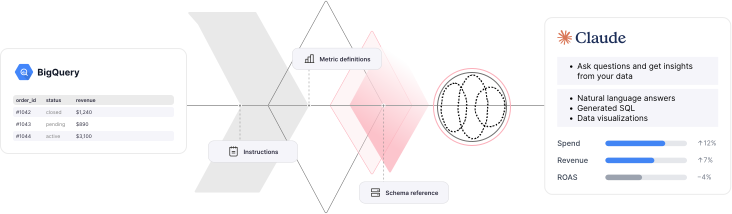
Claude can now query your BigQuery data warehouse directly. Just connect it once, then ask questions in plain English, and Claude explores your schema, writes the SQL, runs it, and explains the answer.
It works well, and it is honest about what it can see. Ask about a period your table does not cover and it will tell you, because that gap is visible in the data.
What it cannot flag is meaning. When a column means something other than what its name suggests, that knowledge lives with your team rather than in the warehouse, and an answer built on the wrong reading arrives looking exactly like a correct one. So the interesting question is not whether the connector works. It is what needs to be in BigQuery, and written down, before the answers are worth trusting.
What is Claude's BigQuery connector?
The Claude BigQuery connector is an official integration built by Google that lets Claude read and query your BigQuery datasets through the Model Context Protocol (MCP). It was added to Claude’s connector directory in January 2026 and runs off a Google-hosted endpoint at bigquery.googleapis.com/mcp. You do not host anything.
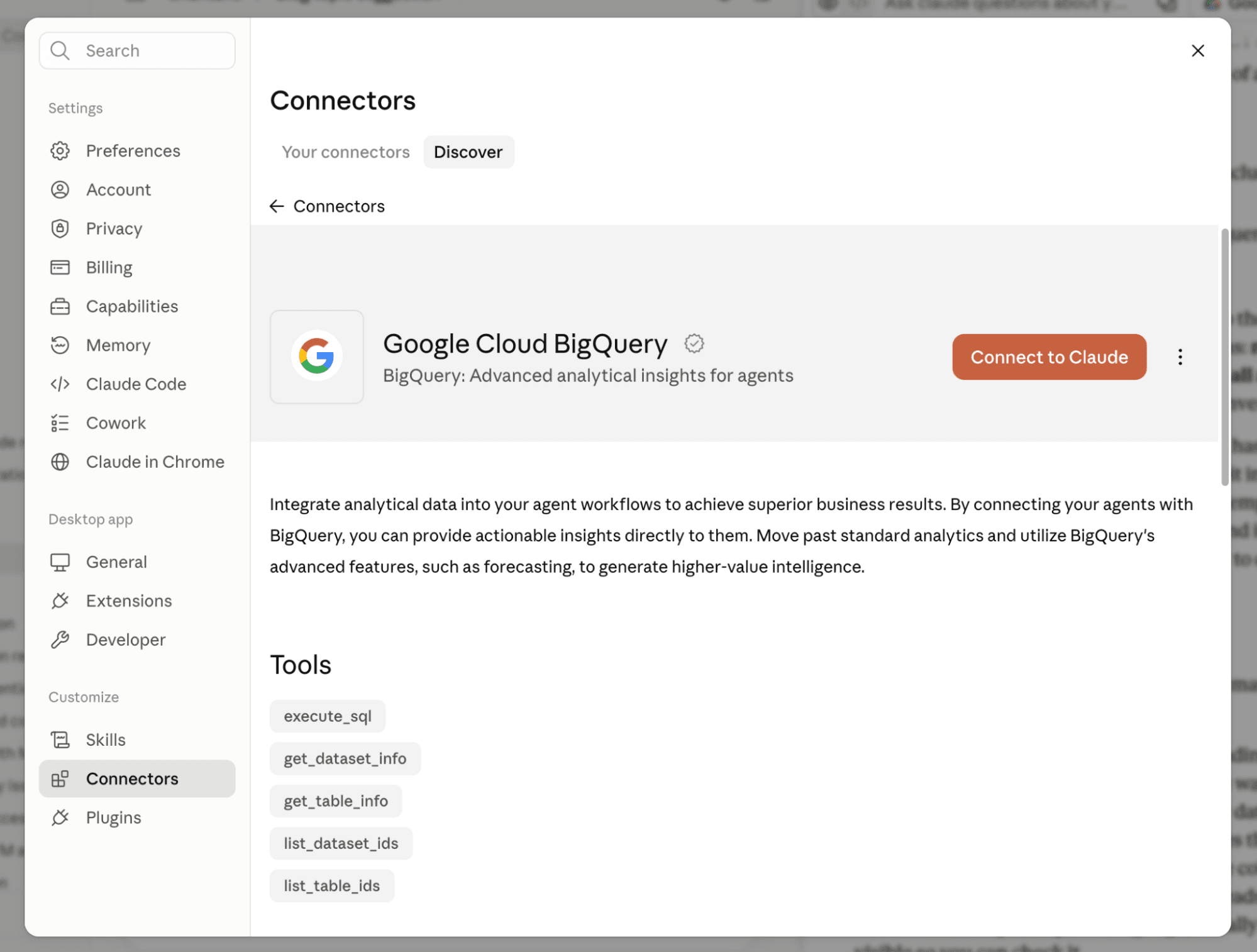
Once connected, Claude gets a set of tools it can call during a conversation:
Read-only tools
- list_dataset_ids shows which datasets exist in your BigQuery project
- list_table_ids lists the tables inside a dataset
- get_dataset_info and get_table_info return schemas, column names, data types, and partitioning details
- execute_sql_readonly runs a SELECT query
- get_query_results pulls the results of a job
Write tools
- execute_sql runs read-write SQL, including DML and DDL
- cancel_job is used to cancel a query that is already running
Check out the official BigQuery MCP documentation for detailed explanations of the tools.
How does the connector actually behave
This is the part most explainers skip, and it matters for calibrating your expectations.
Claude does not have a pre-built understanding of your data. When you ask a question, it works the way a new analyst would on their first day. It lists your datasets to see what exists. It reads the schema of the tables that look relevant. It writes a SQL query based on the column names and types it found. It runs that query and reads the result. Then it answers you in plain language, usually with the SQL visible so you can check it.
That last point is the useful one. This is not a black box. You can see the query, spot a wrong join or a missing filter, and tell Claude to fix it. In practice you end up in a loop that feels like pairing with an analyst who is fast at SQL but knows nothing about your business.
That last part is fixable. You can hand Claude your business rules through project instructions and reference files, which we cover in later sections, and it changes the quality of the answers considerably. But it is worth understanding the default behaviour first, because it explains every mistake the connector makes.
How to connect BigQuery to Claude
Set aside about 15-20 minutes for the configurations. Despite the connector appearing in Claude's directory, this is not a one-click install. Claude asks you for an OAuth client ID and secret, which means you have to create an OAuth client in your own Google Cloud project first.
Detailed steps for the setup:
1. Enable the BigQuery API in the Google Cloud project that holds your data. It is enabled by default on newer projects.
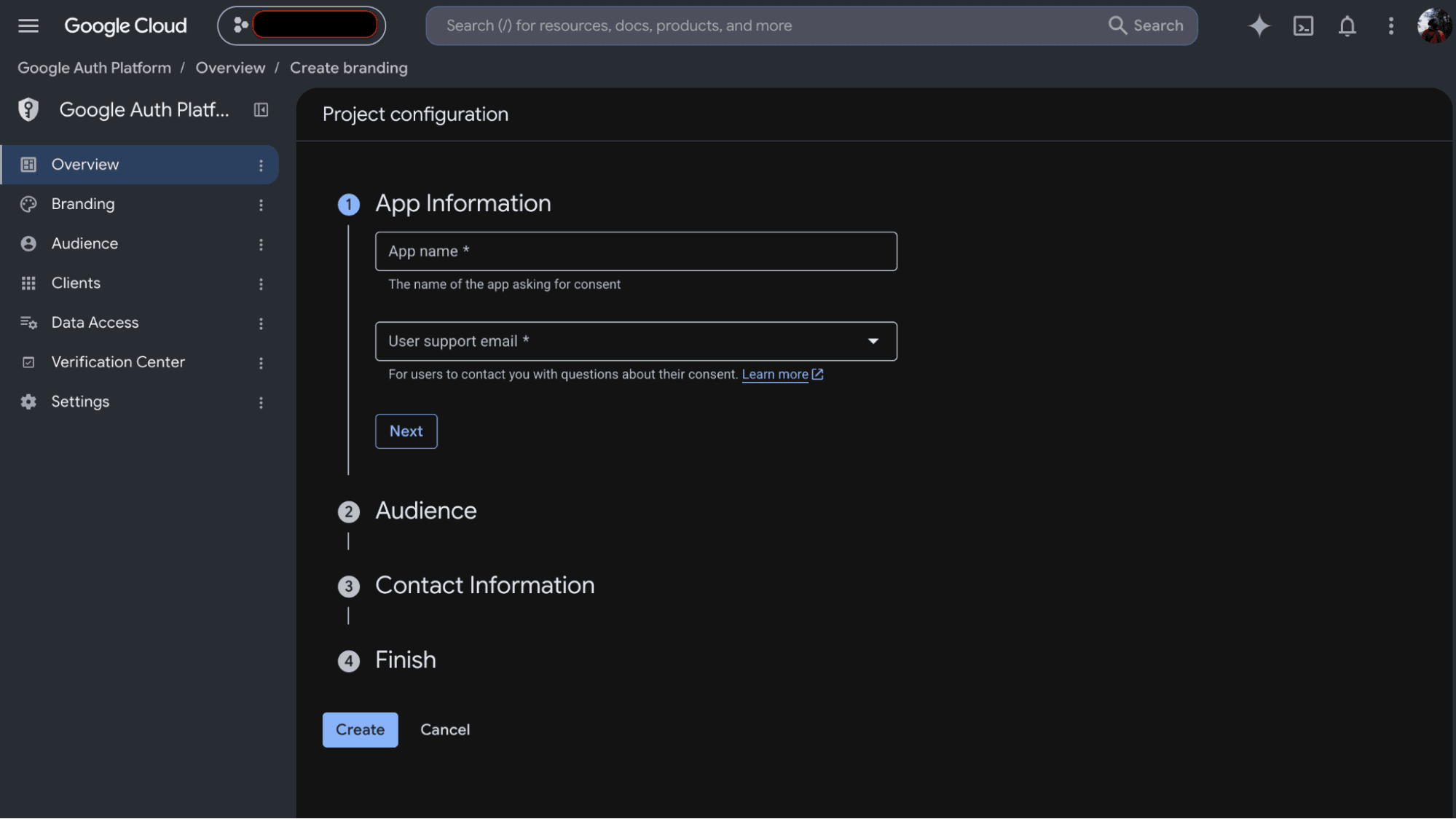
2. Set up the consent screen. This is the Google sign-in page you will see when you authorise Claude, and it has to exist before Google will let you create an OAuth client. In the console, open Google Auth Platform at console.cloud.google.com/auth/overview and click Get started. This section used to be called APIs and Services, then OAuth consent screen, so older guides will send you somewhere that has since moved.
You will be asked for four things:
- App name. Whatever your team will recognise on a consent screen, for example "Claude BigQuery access".
- User support email. Your own address or a Google Group you manage.
- Audience. See below.
- Contact email. Where Google sends notices about the app.
3. Choose your audience carefully, because it decides how much admin follows.
Internal is available only if your project belongs to a Google Workspace organisation, and it limits the app to people in that organisation. Nothing else is required. If you are on Workspace and only your own team will use this, choose Internal.
External means any Google account can in principle authorise the app, and it starts life in testing mode. In testing, only accounts you explicitly add as test users can complete the sign-in, so every colleague has to be added by hand. Choose External only if people outside your domain genuinely need access, or if your project has no Workspace organisation behind it.
4. Add the BigQuery scope. On the Data access page, choose to add scopes and select https://www.googleapis.com/auth/bigquery. This is what tells Google the app intends to reach BigQuery.
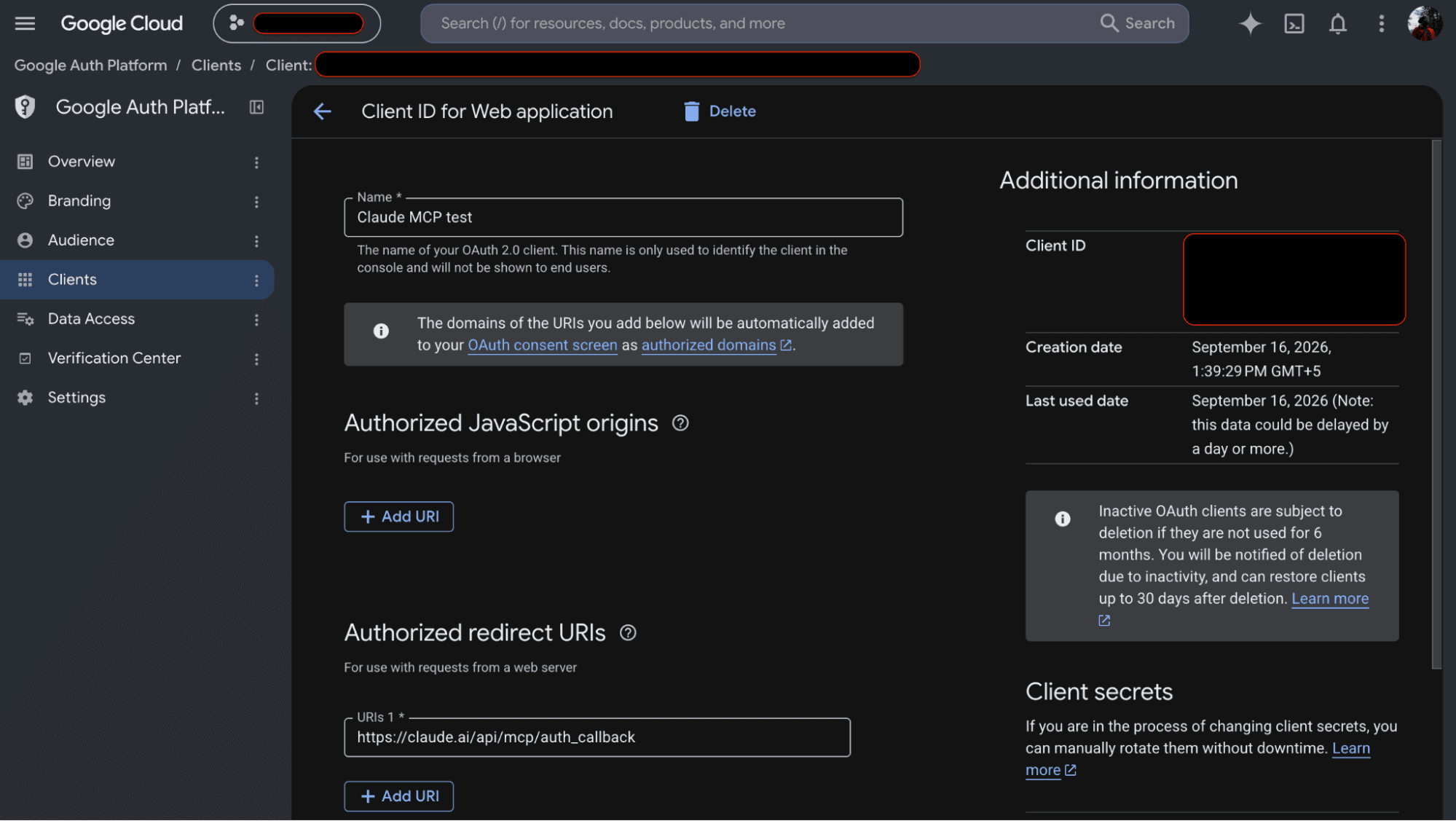
5. Create the OAuth client. On the Clients page, create a client of type Web application, give it a name, and under authorised redirect URIs add this exact value:
https
Google does not support custom redirect URIs here, so it has to match exactly. Getting this wrong is what produces the redirect_uri_mismatch 400 error that most people hit on their first attempt.
6. Copy the client ID and client secret. You will paste both into Claude.
7. Grant three IAM roles to the person who will be signing in. Remember that queries run as that individual’s Google account, so this has to be done for every colleague who connects, not once for the team.
Go to IAM and admin, then IAM, at console.cloud.google.com/iam-admin/iam. Click Grant access, put the person’s Google account email in the principals field, and add these three roles:
- BigQuery Data Viewer (roles/bigquery.dataViewer) lets them read the data in tables.
- BigQuery Job User (roles/bigquery.jobUser) lets them run query jobs, which are billed to the project.
- MCP Tool User (roles/mcp.toolUser) lets them use the MCP endpoint at all.
All three are needed, and a missing one does not always produce a clear error. mcp.toolUser is the one people most often lack, because it is new and it is not part of any familiar BigQuery role, so even a project owner who has run BigQuery for years may not have it yet.
You need permission to hand out roles to do this, which usually means Project IAM Admin or Owner. If that is not you, send your administrator the table above and the email addresses that need access.
Two refinements worth knowing. Data Viewer can be granted on individual datasets rather than the whole project, from the sharing options on each dataset in BigQuery, which is how you give someone Claude access to marketing data without exposing finance. Job User has to be at project level, because that is what pays for the queries. Grants can take a minute or two to take effect, so if the first question fails on permissions, wait briefly and try again before assuming something is wrong.
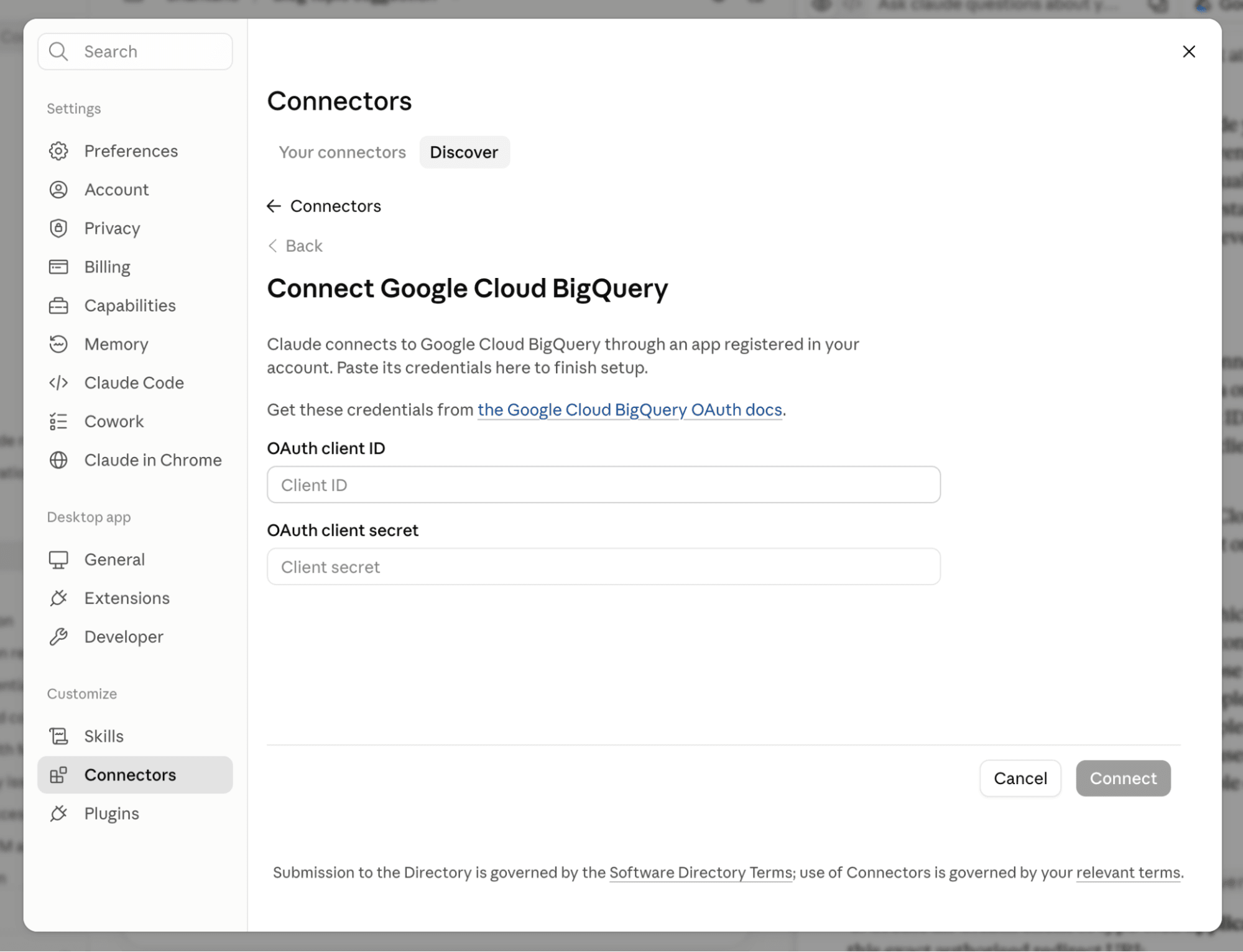
8. Add the connector in Claude. Go to Settings, then Connectors, find Google Cloud BigQuery, and paste in the client ID and secret. You will then be taken through a Google sign-in and consent screen.
9. Set the chat’s approval mode to manually approve. You control these MCP tools from the chat itself. Next to the message box is an approval setting with three options: “Manually approve”, “Automatically approve”, and “Skip all approvals”. It applies to every tool Claude uses in that conversation.
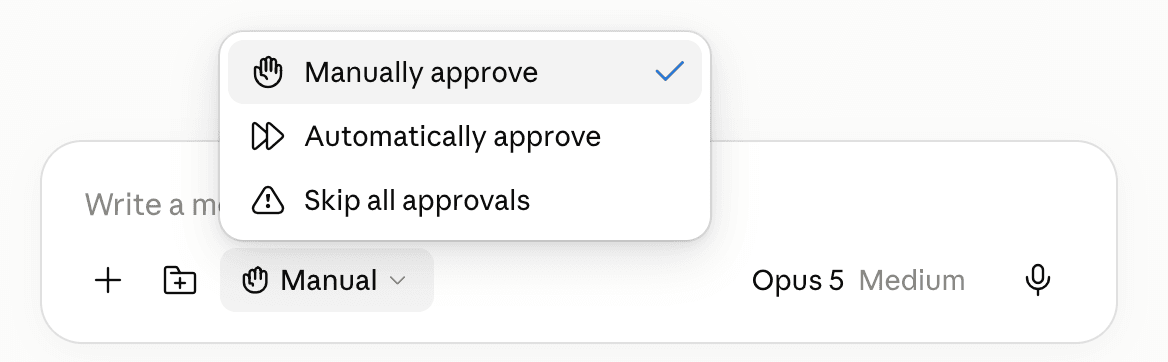
Leave it on “Manually approve”. Claude then has to stop and ask before it runs a tool, showing you what it intends to do so you can refuse it. Skipping approvals is tempting during a long analysis that keeps pausing to ask, and it is also how a reporting session quietly gains the ability to change the data it is reporting on.
10. Ask a question to confirm it worked. Something like "which datasets can you see, and what tables are in the marketing dataset" is a good first test, because it exercises the discovery tools without spending money on a large scan.
A note on identity
The OAuth client ID and secret identify the application. You create one client in your Google Cloud project and everyone on the team pastes the same pair into Claude. On its own it grants no access to any data. All it does is let Claude ask Google for permission on someone’s behalf.
The sign-in identifies the person. Queries run as the Google account that completed the consent screen, scoped by that individual’s IAM roles. If a colleague can only see two datasets, that is all Claude will see for them, even though they used the same client ID as everyone else.
So data access is per user, which is the part that matters for governance. Access control stays in Google Cloud where it already lives, and you can revoke one person without touching anyone else.
What you can ask once it is connected
Honestly, if your warehouse has the data, you can ask about it. Claude reads whatever is there and writes the SQL, so the limit is not what it understands but what you have loaded.
That makes data loading the part that matters the most. Choosing the right tool to sync your data into BigQuery is the real decision, and that is where Unite comes in.
Unite is a no-code ETL platform that moves data from over 100 sources, including Google Ads, Meta Ads, TikTok, LinkedIn, Amazon Ads, GA4, Shopify, Stripe, HubSpot and Salesforce, into BigQuery on a schedule you set. You choose the sources and fields; Unite handles extraction, pagination, rate limits and schema changes, lets you standardise date and campaign fields as the data lands rather than patching them in every query afterwards, and runs on a schedule with failure alerts so answers reflect current data.
Pricing is based on users, sources and pipelines rather than rows or monthly active rows, so an exploratory conversation with Claude that scans a lot of data does not change what your pipeline costs. Plans start at $29 a month, with a 14 day trial and no card required.
<some data flow illustration here from Unite’s video maybe>
Why Claude’s answers go wrong, and what fixes it
It helps to separate two kinds of gaps.
The first is visible in the data, and Claude handles it well. Missing days, empty tables, a date range that stops short of what you asked for. It tells you, because it can see the shortfall when it reads the result.
The second is invisible, and it is the meaning that lives in your team's heads rather than in the warehouse. A status column of 1, 2 and 9 looks unambiguous. Nothing marks 9 as “cancelled”, so Claude takes the most reasonable reading, writes SQL that executes perfectly, and returns a revenue number that quietly includes cancelled orders. Nothing warns you, because there was nothing to detect. The same applies to joins: when several paths connect two tables, the model picks one, and a recent study found this regularly lands metrics 8 to 12 percentage points away from an organisation's own definitions.
The fix is cheaper than it sounds. Use the connector inside a Claude Project rather than in one-off chats, and give that project three things:
Instructions that set the role and the rules. Something as simple as “You are a senior data analyst answering questions about one Shopify store’s data in BigQuery” changes how the model approaches an ambiguous question. Add the rules it cannot infer, such as which table is authoritative for revenue and which date column to use.
A metric definitions file. A short markdown document listing how your organisation defines its terms. Active customer. New versus returning. What counts as a conversion. Which statuses to exclude. This is the single highest-value document you can write, because it settles exactly the ambiguities that produce wrong numbers without producing warnings.
A schema reference. A CSV or markdown file describing your tables and columns in plain language, including the ones with unhelpful names. This is what stops Claude from inferring that status 9 means something other than cancelled.
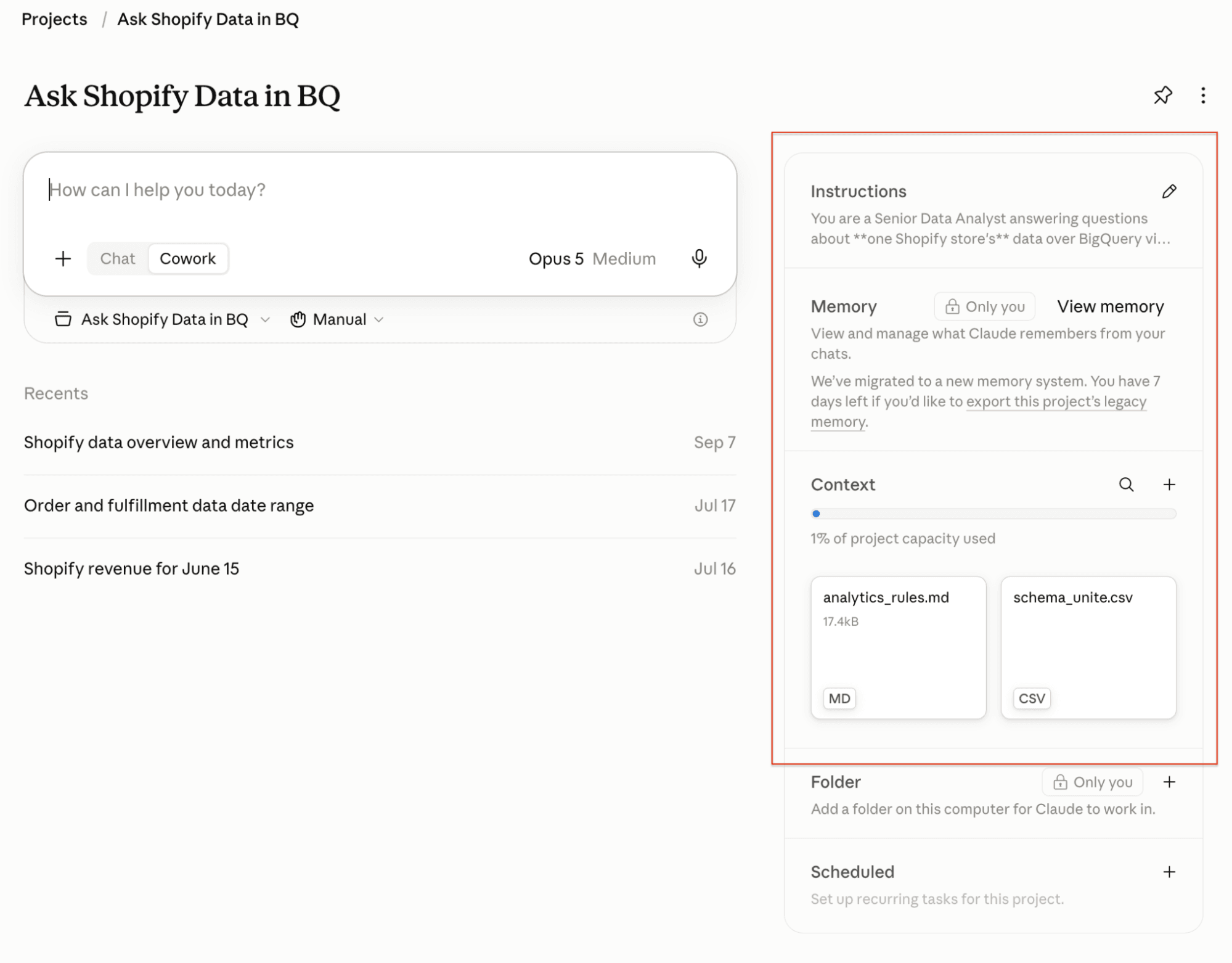
Together these act as a lightweight semantic layer. The connector tells Claude what exists. These files tell it what any of it means.
The limits, and what they cost
Four constraints are built into the BigQuery MCP server. Queries time out after three minutes. Results are capped at 3,000 rows, so this is an analysis tool rather than an export tool. External tables backed by Google Drive are unsupported. And the read-only tool blocks DML, DDL and Python UDFs, which is the behaviour you want.
The fifth limit is your budget. Claude runs real BigQuery jobs against your billing account, and a model exploring an unpartitioned multi-terabyte table gets expensive quickly. Set a maximum bytes billed limit so a runaway query is killed rather than charged, apply custom quotas to cap daily spend, and point Claude at partitioned, clustered or pre-aggregated tables rather than raw event data. Teams handling sensitive data can also screen prompts and responses with Model Armor to reduce prompt injection risk.
Read more about BigQuery MCP Server limitations.
Frequently asked questions
Is the Claude BigQuery connector free?
The connector itself is provided by Google at no charge, but every query Claude runs is billed to your Google Cloud account under normal BigQuery pricing. You also need a Claude plan that supports connectors.
Can Claude modify or delete my BigQuery data?
Only if you allow it. The connector keeps read-only tools separate from write and delete tools, and the approval setting next to the message box decides whether Claude can act without asking. On manually approve, it has to ask before running anything that changes data and shows you what it intends to do. Keep it there whenever you are working against production data.
Do I need a Google Cloud service account?
No. You create an OAuth client in your project and supply its ID and secret, but that identifies the application rather than a person. Queries run as whichever Google account signed in, scoped by that account’s IAM roles. Service accounts are for self-hosted MCP setups and automated agents, where Google recommends a dedicated identity so its activity can be audited separately.
Does everyone on my team need their own OAuth client?
No, one client for the project is enough and everyone uses the same ID and secret. What differs per person is the Google account they sign in with and the IAM roles that account holds, which is what decides the data each of them can reach.
Do I need to know SQL to use it?
No, but it helps. You ask questions in plain English and Claude writes the SQL. Being able to read that SQL is what lets you catch a wrong join before it reaches a slide deck.
Why does Claude give different answers to the same question?
Usually because the question is ambiguous and your warehouse does not define the term. If “active customer” is not defined anywhere in your data, the model picks a reading each time it is asked. Encoding the definition in a view, a modelled table or your project’s metric definitions file fixes it permanently.
Does this replace my dashboards?
No. It answers one question at a time, which is excellent for investigation and poor for monitoring. Most teams use both: dashboards for the numbers they check every morning, and Claude for the “why did that happen” follow-up.
What if my data is spread across several platforms?
Then the connector cannot help until those platforms are landing in BigQuery, because it reads your warehouse and nothing else. Getting Google Ads, Meta, Shopify, Stripe and the rest into one place on a schedule is the prerequisite, and it is exactly what Unite is for.
Getting started
Connect BigQuery to Claude, leave the approval mode on manually approve, and ask it three questions you already know the answers to. That last step is the one people skip, and it is the one that tells you whether your warehouse is ready.
If the answers come back wrong, the problem is rarely the model. It is missing data, ambiguous column names, or tables that stopped refreshing a fortnight ago. Fix what feeds the warehouse and the same question starts returning the right number.
That is the part Unite handles. Over 100 sources into BigQuery on a schedule, with the field standardisation and failure alerts that keep the answers current, priced on pipelines rather than rows so asking more questions never costs you more.
Start your free 14 day trial and get your marketing, sales and commerce data into BigQuery, so that when you ask Claude a question, the answer is one you can act on.
LET’S BUILD SMARTER DATA PIPELINES — TOGETHER.
Whether you're migrating from another ETL platform or starting fresh, Unite helps your team launch reliable data pipelines fast. Need a demo, drop us a message below: